
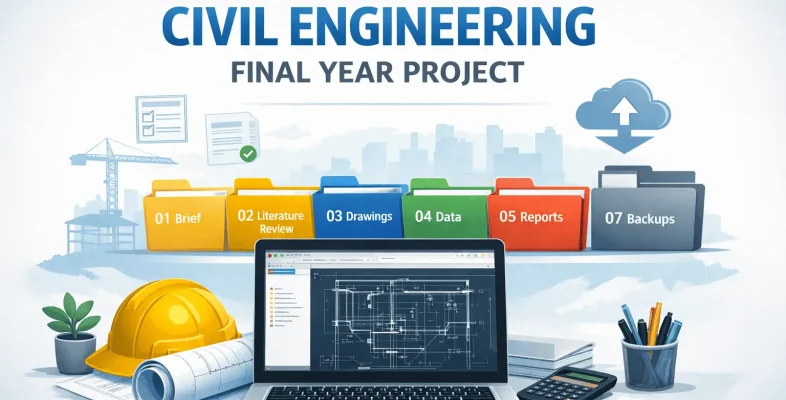
Let me be honest with you upfront: the folder structure I’m about to show you isn’t revolutionary. You’ve probably seen versions of it before. The reason most students still end up in chaos halfway through their civil engineering final year project isn’t because they don’t know organization exists — it’s because they start with good intentions, get busy, and then the system quietly falls apart around Week 6 when the real work kicks in.
So before I give you any structure or tools, I want to make sure you understand why things go wrong, because the fix only makes sense once you see the actual problem.
Why Civil Engineering Final Year Projects Become Disorganized
You’re not working on one thing. You’re working on five things simultaneously — a structural design, a drainage analysis, a report, a literature review, a presentation — and they’re all connected. Change one element in your Excel calculation and it ripples into your AutoCAD drawing, which means your report section is now wrong, which means the figure you already pasted into your presentation is outdated.
The moment those connections become invisible — when you can’t trace which version of what file feeds into what — your project starts generating errors faster than you can catch them.
I’ve seen a student submit a final report that referenced a beam size that had been changed two revisions ago. The drawing showed the correct size. The report didn’t. The calculation did. That’s three documents telling three different stories, and it happened because the workflow had no spine.
That’s the problem. Not laziness. Not lack of skill. No spine. Here’s how you build one.
Project Folder Structure for Civil Engineering Final Year Projects
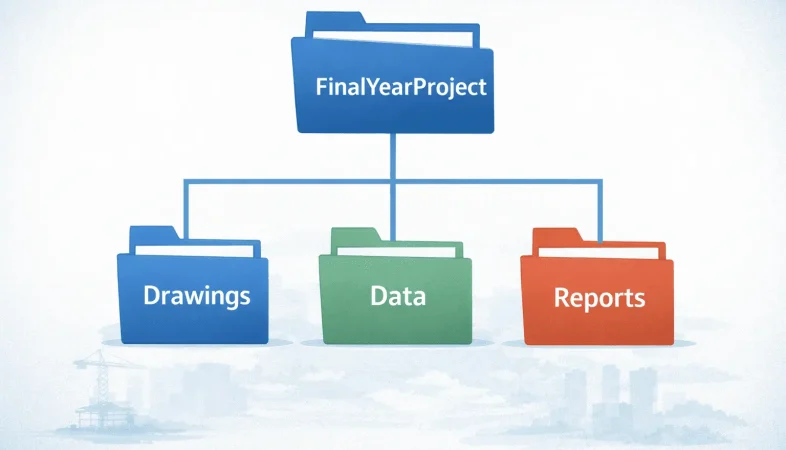
The biggest mistake is building a folder structure and then rebuilding it again two months in because it “doesn’t quite fit anymore.” Stop. Pick something and commit. Here’s what works:
├── 01_Brief
├── 02_LiteratureReview
├── 03_Drawings
├── 04_Data
├── 05_Reports
├── 06_Presentations
└── 07_Backups
01_Brief (Project Scope and Instructions)
Your supervisor’s brief, the project scope, any initial instructions or constraints. This folder is mostly read-only after Week 1. When you feel like you’re drifting, come back here and re-read what you actually agreed to deliver.
02_LiteratureReview (References and Standards)
Every paper, code, standard, and reference document you’re using — not just the ones you cited. All of them. You’ll reference something two months from now that you half-read in Week 2, and you’ll thank yourself for keeping it here. Rename every PDF to something human-readable, like BS8110_StructuralDesign.pdf, not paper_final_2(1).pdf.
03_Drawings (CAD Files)
All CAD work lives here. Nothing else. Never save a drawing to your Desktop because you were “just quickly checking something.” That drawing will still be on your Desktop three weeks later.
04_Data (Raw Calculations and Inputs)
Raw inputs: site measurements, borehole logs, traffic counts, hydrology data, your Excel calculation sheets. The rule — raw data never gets edited in place. If you need to manipulate it, copy it to a working file and keep the original untouched. Future you will need it.
05_Reports (Final Documentation)
Your written deliverable. This is what you submit. Keep drafts versioned here. Don’t mix report files with your data files.
06_Presentations (Slides)
Slides go here and only here. When you’re ten minutes before a supervisor meeting, you shouldn’t be hunting for your slides.
07_Backups (Archives)
More on this below — treat it seriously or don’t bother with any of the rest.
Tools That Support This Engineering Project Workflow
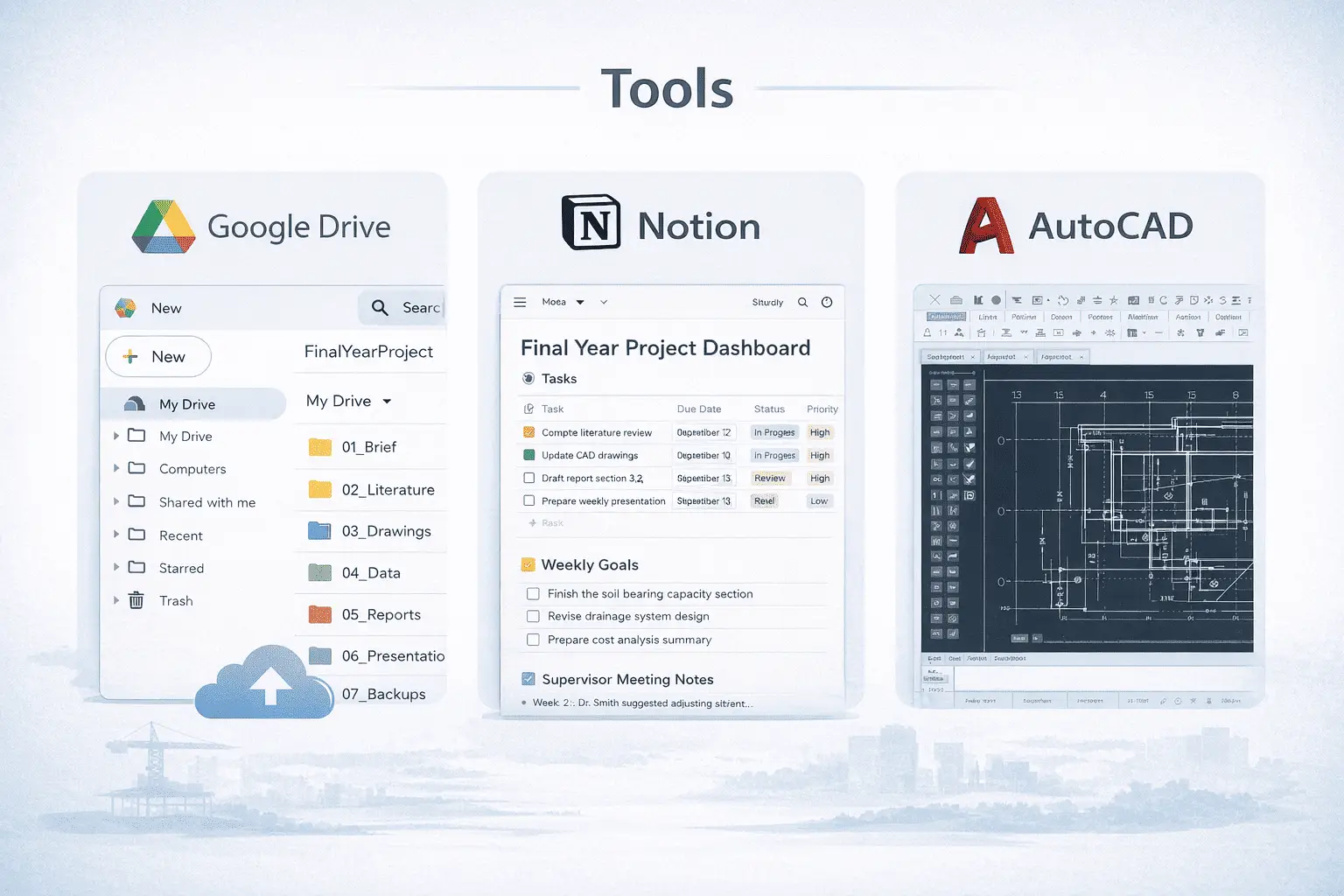
Structure is the system. Tools support it. Here’s how they fit — keep it simple:
- Google Drive — put your entire project folder inside it. Auto-sync means every save is backed up to the cloud without thinking about it. Share specific folders with your supervisor when they ask for files.
- Notion — use it as your project control panel. Track tasks, log supervisor feedback, set weekly goals. One page per week is enough. You don’t need a complex setup.
- AutoCAD — all drawings stay in 03_Drawings. No exceptions.
- Word or Overleaf — reports live in 05_Reports, versioned properly (more on that next).
You don’t need more tools than this. What you need is a clear role for each one so nothing overlaps and nothing falls through the gaps.
File Naming and Version Control for Engineering Projects
Here’s the thing nobody tells you: the word “final” in a filename is a lie. There is no final. There’s always another revision.
Stop naming files like this:
Report_FINAL.docx
Report_FINAL_v2.docx
Report_FINAL_actualfinal.docx
Use a simple, consistent scheme instead — a version number and a date, in the filename itself:
Report_v02_2026-04-13.docx
Drainage_Drawing_v05_2026-04-20.dwg
- Bump the version number every time you make a meaningful change — not every save.
- Never delete an old version until the project is fully submitted and graded.
- Keep the naming pattern identical across drawings, reports, and data files so anyone (including you, in six weeks) can tell what’s current at a glance.
This alone eliminates most of the “wait, which version is this?” panic that hits in the final week.
How to Manage Drawings, Data, and Reports in Your Engineering Project
This is where civil engineering final year projects actually fall apart, and it’s more of a habit than a system.
The rule is simple: every file lives in one place, and you always know which direction the information flows.
Your data drives your drawings. Your drawings drive your report. That’s the sequence. When something changes — and something will always change — you update it at the source and work forward.
Say you’re redesigning a pipe gradient because your site data came back different than expected. The sequence is:
- Update the Excel calculation in 04_Data
- Revise the drawing in 03_Drawings to reflect the new design
- Update the relevant section in your report in 05_Reports
Three steps. Not complicated. But it only works if you resist the temptation to “quickly fix it in the report and sort out the drawing later.” Later doesn’t come. You’ll submit a report that contradicts your drawings and wonder why your supervisor is confused.
How to Track Supervisor Feedback on Your Final Year Project
Your supervisor is giving you free consulting on a live project. The least you can do is write it down.
Keep a feedback log. It doesn’t need to be fancy — a table in Notion, a simple Word document, even a handwritten notebook that you photograph. What matters is that you record:
- The date
- What they said
- What you’re going to do about it
- Whether you’ve done it
When your supervisor says “I thought you were going to fix the bearing capacity assumption,” you want to be able to pull up your log and say “yes, that’s action item 7 from Week 4 — here’s what I changed and why.” That response tells them you’re working like an engineer, not a student scrambling to remember conversations.
It also protects you. If there’s ever ambiguity about what you were asked to do, your log is the record.
Backup System for Engineering Project Files (Non-Negotiable)
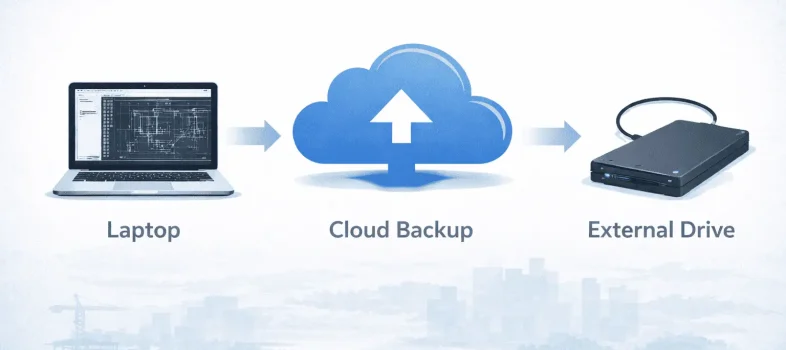
Three layers:
- Layer 1 — Cloud sync. Your entire project folder should live inside Google Drive or OneDrive. Set it up on day one. Make it automatic so you don’t have to think about it.
- Layer 2 — A secondary local copy. Keep one full copy of the project on a separate physical drive (or a second cloud account). Cloud sync fails silently more often than people expect.
- Layer 3 — Weekly archive in 07_Backups. At the end of each week, zip your entire project folder and drop it in your Backups folder:
Backup_Week04.zip. This gives you a time-stamped snapshot you can roll back to.
I know someone who lost weeks of work two days before submission because of a hard drive failure. No backup. Submitted late. Passed by a narrow margin. Don’t be that person.
Quick Workflow Summary (Copy This)
- Create the folder structure once.
- Keep brief, literature, drawings, data, reports, presentations, and backups separate.
- Store the project in cloud sync.
- Use clear version names for every file.
- Update data first, then drawings, then reports.
- Track supervisor feedback in one log.
- Back up weekly without fail.
That is the whole game.
Weekly Workflow Routine to Keep Your Project Organized
Structure only works if you maintain it. Here’s the minimum viable routine:
Monday: Review your task board. Set a clear goal for the week — not “work on the report” but “finish Section 3.2 and update the drainage drawing to v05.”
During the week: Work in the right folders. Name files properly as you create them. Don’t save anything to your Desktop with the intention of sorting it later.
Friday: Five minutes of admin. Move stray files. Update version numbers. Check that your report matches your most recent drawings. Zip and archive.
That’s it. The discipline is doing it consistently when you’re tired and behind schedule — which is most of the time.
Frequently Asked Questions
What folder structure should I use for a civil engineering final year project?
Separate top-level folders for your brief, literature review, drawings, raw data, reports, presentations, and backups — seven folders, numbered so they sort in the order you’ll actually use them. Pick a structure once and commit to it rather than rebuilding it partway through.
How do I version control engineering drawings and reports without Git?
Use a consistent filename pattern — a version number plus a date, like Report_v02_2026-04-13.docx — and never delete an old version until the project is fully graded. Combine this with weekly zipped archives for a rollback point you can trust.
How often should I back up my final year project?
At minimum, weekly full-folder zipped archives on top of continuous cloud sync. Cloud sync alone isn’t a backup — it syncs mistakes and deletions just as fast as good work, which is why a separate weekly snapshot matters.
Final Thoughts on Engineering Project Workflow
The habits you build on this civil engineering final year project are the habits you’ll carry into your first job. On a real project, disorganized files don’t just cause frustration — they cause errors that cost money and sometimes endanger people. Your final year project is low stakes by comparison, but it’s where the patterns get set.
Get the structure right. Version properly. Back up religiously. Track your feedback. Keep your data and your reports talking to each other.
If you haven’t already decided which tools you’ll actually be using day-to-day, start there first — the Top 10 Essential Software for Civil Engineering Students guide covers exactly what you need before you set any of this up. You’re not just trying to submit something passable. You’re practicing how to work.
Build the Rest of Your System
This folder structure is one piece of a bigger productivity system for civil engineering students — tasks, notes, and weekly planning included.